Generating a DSS Tag
After receiving access to the Distributor Stock Search (DSS), you can generate a DSS tag using our simple two-step wizard. Here’s how:
Step 1: Configure Search Options
On this step, you make some selections that determine how the DSS searches for inventory.
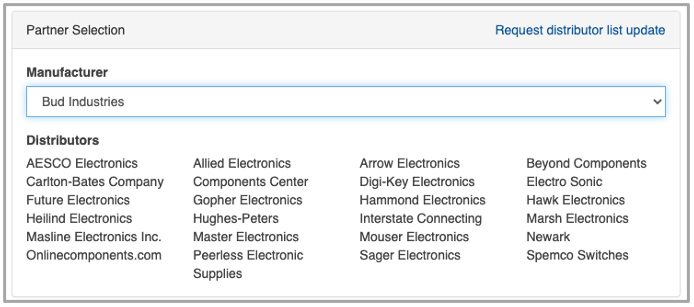
- A single manufacturer or “All” must be selected. If “All” is selected, all manufacturers listed will be included in the search results.
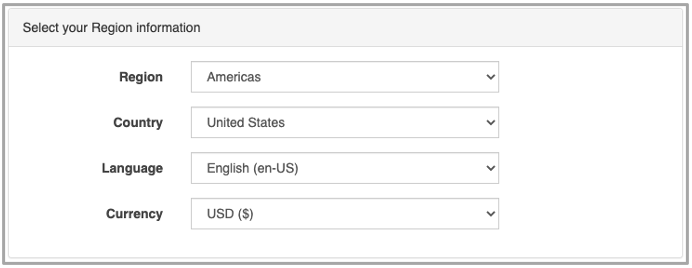
- The region, country, language and currency for inventory displayed in the DSS must be selected. Available selections for country, language and currency are based on the selected region.
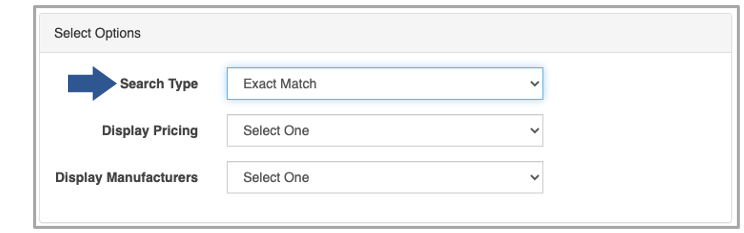
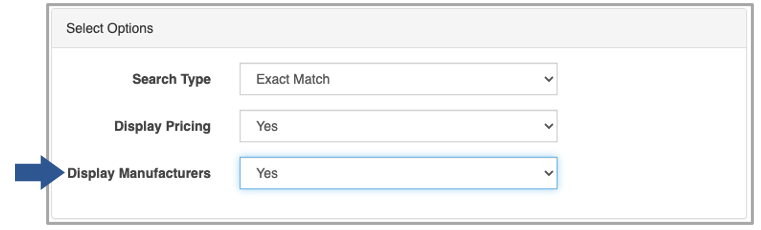
- Select if you want to include only exact part number matches or exact and partial matches.
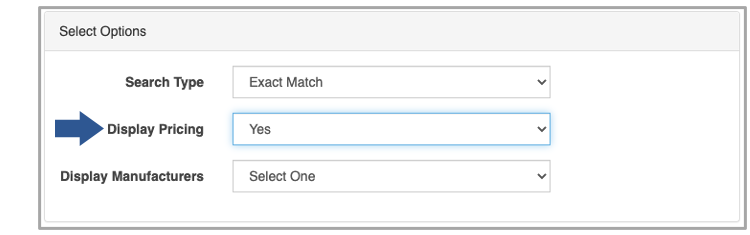
- Select if you want pricing displayed in the results.
- Select if you want manufacturer names displayed in the results. Likely you would only do this if you selected that “All” manufacturers be included in the search results.
Step 2: Select Integration Style and Get the Code
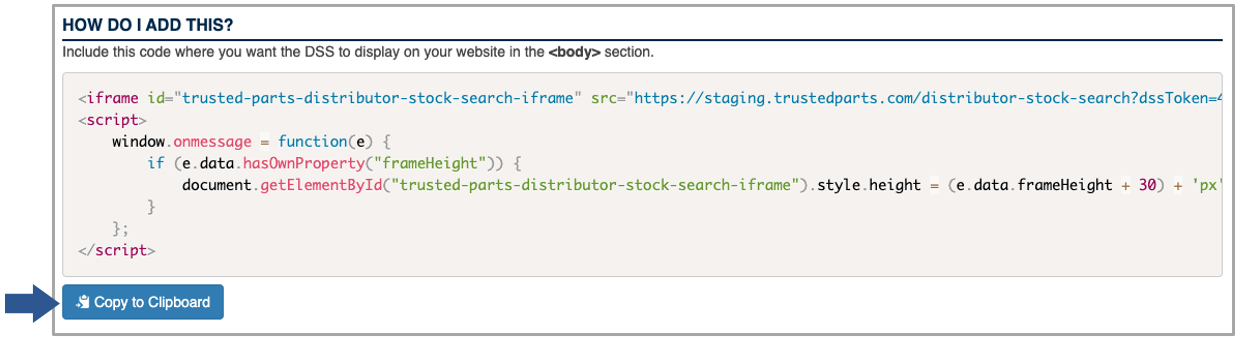
On this step, you’ll choose the style of the DSS that you want to use. Once you have selected a style, you will need to copy and paste the indicated tag into your web page.
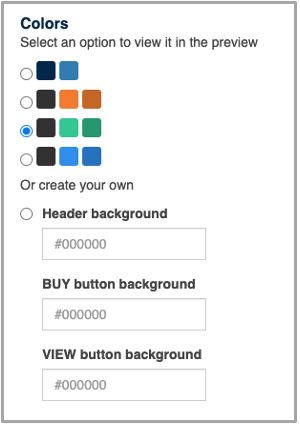
Colors
You may select from a few basic color schemes. Or, if you know the hex values for the colors you want to use, you can create your own color scheme to match your web site’s branding. Your selections are immediately reflected in the DSS Preview so you can verify the appearance.
Search Input
You may choose to include or omit a search input on your DSS tool. For example, if you want to create a search page where the user can perform multiple inventory lookups, you would choose the With Search Input option. On the other hand, if you are wanting to display inventory for a specific part on a product page, you would choose Without Search Input. Whichever selection you make will be immediately reflected in the DSS Preview.
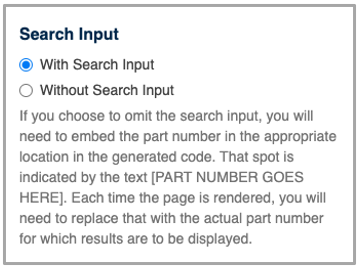
If you choose the Without Search Input option, a Test Part Number input will appear where you may enter a part number to test in the DSS Preview. With this option also please keep in mind that you will need to embed the desired part number into the generated DSS tag. The spot to put it is clearly indicated by the placeholder [PART NUMBER GOES HERE].
Integration Style
You may choose to integrate the DSS into your page as an Iframe or as Embedded in HTML.
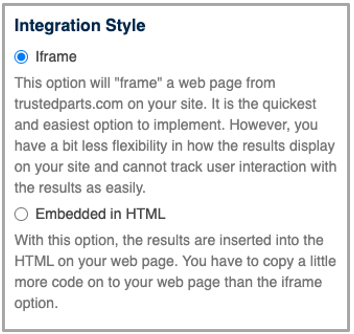
An iframe (inline frame) is a web page embedded inside another web page. So, this option embeds a page from TrustedParts.com that contains your DSS code into your web page. When your web page loads, the embedded page from TrustedParts.com loads at the same time, and the user has the impression that all of the content is coming from your web site. The iframe integration style has a number of advantages. It is the simplest style, involving less code to paste into your web page. No CSS needs to be included. Some JavaScript is included that will automatically resize the iframe to fit the space allowed and the content it contains.
The Embedded in HTML option has you place one HTML element, some JavaScript, and CSS into your web page. When your web page loads, the JavaScript executes, making a request to the TrustedParts.com web servers to fetch the results to display. The inventory results are dynamically inserted into your web page. This style has a bit more code to insert and a few more moving pieces, but it allows for more flexibility. For example, you could introduce custom JavaScript that does tracking when a BUY or VIEW is clicked.
After you have selected a style, you can copy and paste the indicated tag into your web page.
If you have questions about which integration style is right for you, please let us know. We are happy to help!
Note: Please see Business Rules for TrustedParts.com Search Results for information on how inventory is used and requirements for stock quantities.