
New BOM Tool
The new BOM Tool on TrustedParts.com provides a streamlined BOM experience to simplify component management. Retrieve pricing and availability faster, customize, collaborate, and more—all in an intuitive, easier-to-use format.
Why Choose the TrustedParts.com BOM Tool
As the trusted source for authorized electronic components, TrustedParts.com has proudly provided users with the Legacy BOM and Classic BOM tools. The newly redesigned BOM Tool introduces many improvements, while maintaining valuable core features:
- The fastest retrieval and export of real-time distributor offers of any aggregator
- Generous allowance on the number of parts (up to 1,000 for Extended BOM users)
- Choose (and save) preferred distributors
- One-click shopping carts and customizable export files
- Effortless BOM sharing and collaboration
- Integrated carbon footprint data for approved OEMs and site sponsors
Users can save an unlimited number of BOMs—and it’s (still) free to use. Sign in or register to get started.
Start a New BOM
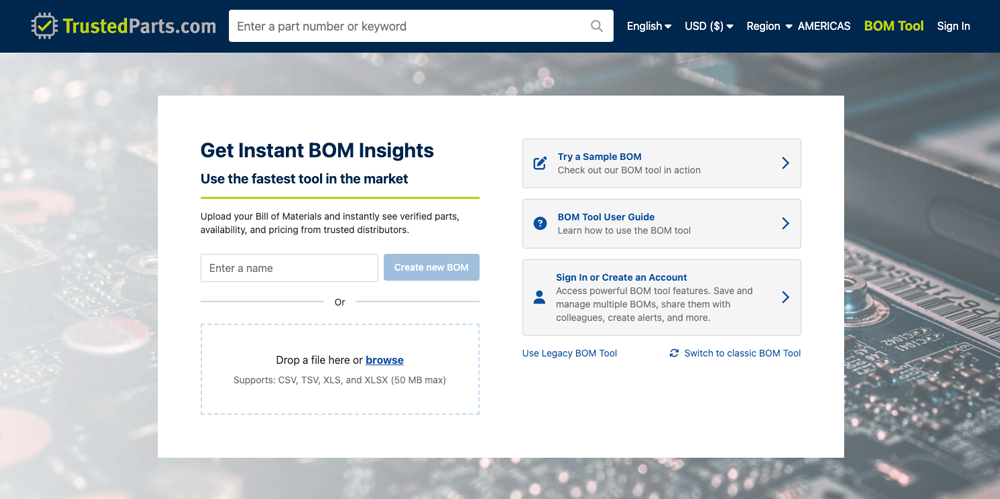
Add Part Numbers Line by Line
Enter a name for your BOM, then click the Create new BOM button. See Manage Your BOM for instructions using the tool from there.
Upload a File (Supported Formats: CSV, TSV, XLS, XLSX)
Upload a file by dragging it to the field provided or selecting it from your computer. After the file is uploaded, follow these steps:
- If required, map the fields of the file to the BOM by dragging the applicable column header tags from the Available Fields group to the corresponding field provided. (For example, drag the Part Number tag to the Part Number field.)
- Click the Import the BOM button.
See Manage Your BOM to continue.
Manage Your BOM
After creating a BOM, you can edit the name, adjust the BOM quantity, add more part numbers, edit/sort/filter the information, and more.
Name Your BOM
Click on the BOM name to activate the field and edit the text. Click anywhere outside of the text field to save the name.
Add Parts
- In the Part Number column, scroll to the bottom and click on the Enter Part Number field.
- Then, start typing (or paste) the part number. Wait for the dropdown box to load and click on the part number (or use Enter on your keyboard) to make a selection. Auto-suggest includes the manufacturer names.
- If applicable, edit the part's internal reference number. Note: this field is immediately below the manufacturer's part number and is visible only when a BOM is created from an upload file where internal part numbers were supplied.
- As needed, repeat the above steps with additional part numbers.
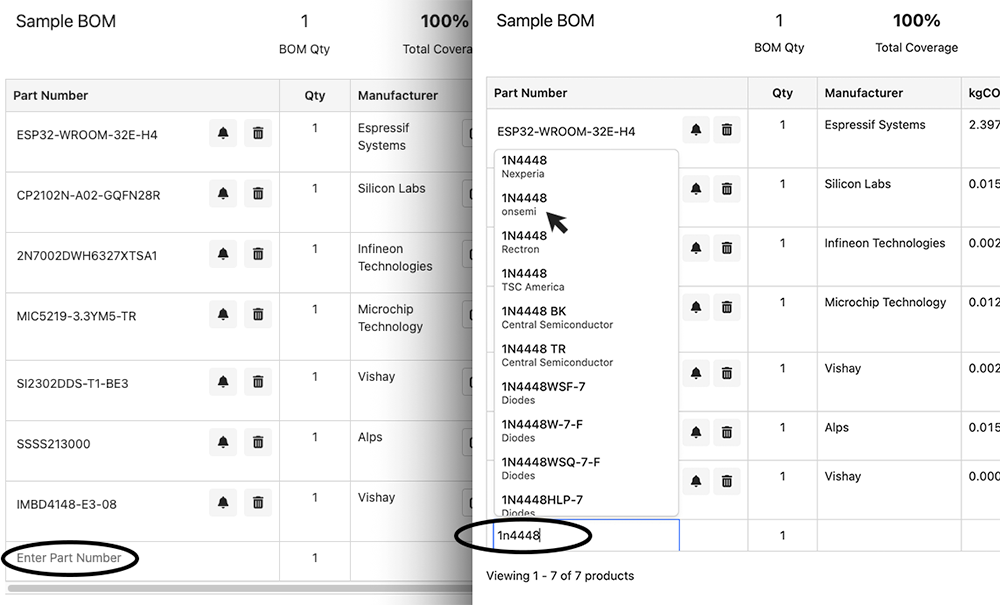
Edit Parts
- To delete a part, click on the trash icon next to the part number.
- To change the manufacturer for a part, click on the part number and select the desired part from the auto-suggest box.
- To set up stock or price alerts for a part, click on the alert icon next to the part number. Note: see Stock and Price Alerts for more information.
- To adjust the desired part quantity in the Qty column, click on the number field. Type in the desired quantity and click out of the field to save. Note: adjusting this value will affect the cart quantity when you make a cart selection. (You can adjust part quantities from the cart later on. See BOM Shopping Cart for information.)
- Some parts may require you to choose a specific manufacturer. If multiple items are found, choose one from the Select a Manufacturer drop-down in the Manufacturer column.
Adjust Authorized Distributor Results
View results from distributors using either of these methods:
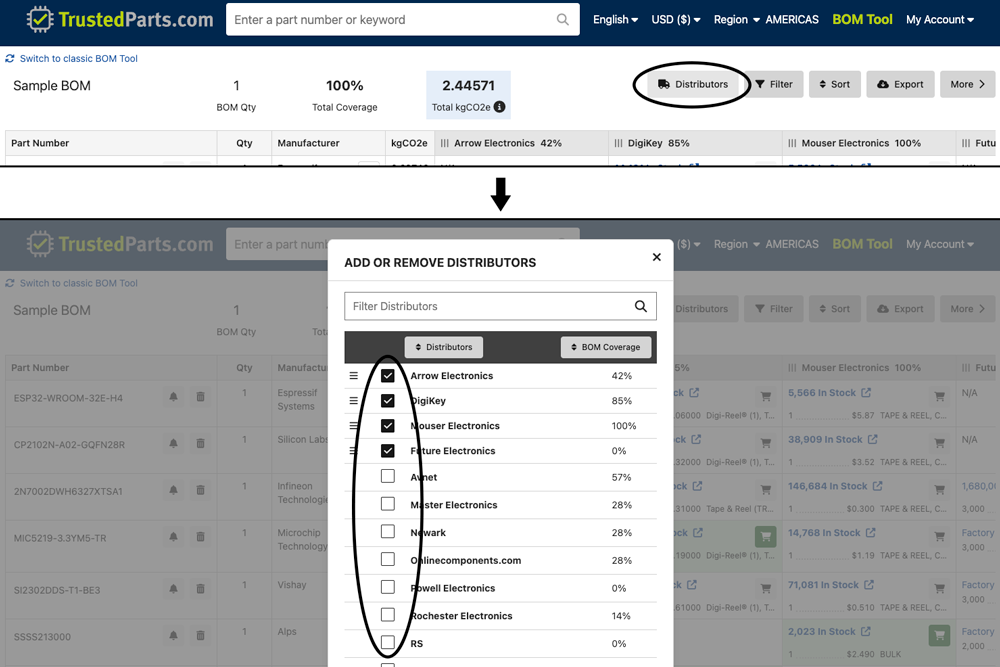
Click on the Distributors button to add or remove distributors from the BOM.
- Check the box next to a distributor you’d like to view on the BOM.
- Uncheck the box next to a distributor’s name to remove it from BOM view.
- In the Other Distributors column, click the truck icon on a part for which you’d like to view more distributors. Use the + button to add distributors.
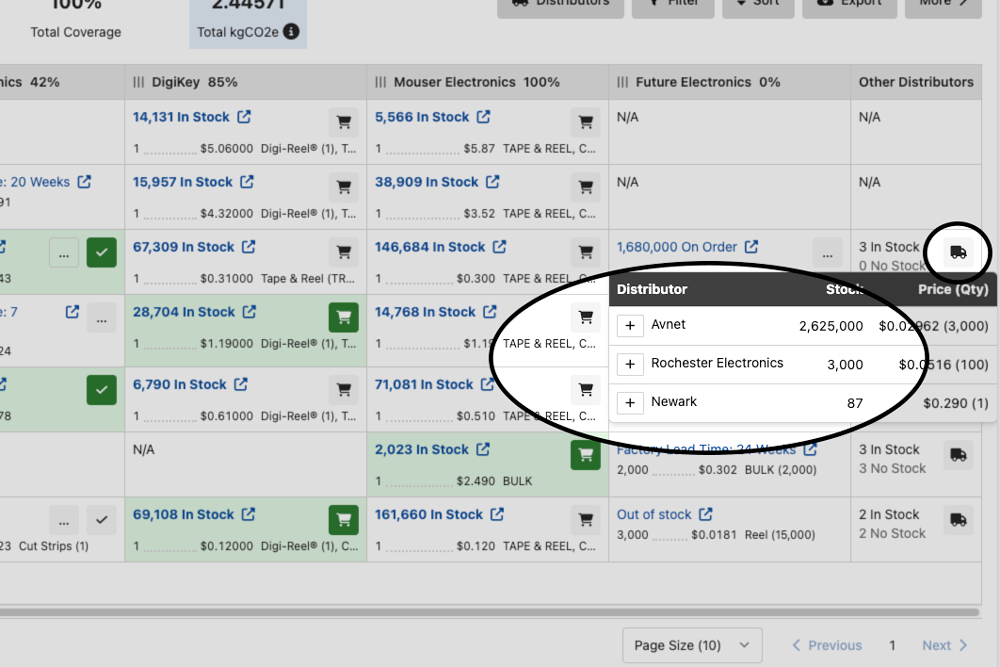
To adjust which distributors automatically display on your BOM, see Editing Default BOM Distributors.
You can also sort the distributors in order of coverage of in-stock parts. To do so, see Sort the BOM.
Filter the BOM
Click the Filter button. Make selections to filter the BOM and view parts accordingly:
- Check In Stock to view only in-stock parts
- Check Out of Stock to view only out-of-stock parts
- Enter a partial or full part number in the Part Number field to view parts containing those characters
- Enter a partial or full manufacturer name in the Manufacturer field to view parts from manufacturers containing those characters
An icon will appear over the Filter button, letting you know at least one filter applies to your BOM view. You may filter using more than one field. To remove all filters and view the full BOM again, click the Clear Filters button.
Sort the BOM
To sort the part numbers, click the Sort button and choose an option under Parts By:
- Custom Order is the default sort, based on the order of import/add. Adjust the custom order by using the order icon (three stacked lines) next to the part number and dragging up or down.
- Part Number sorts the parts alphanumerically. Click on Part Number again to toggle between ascending and descending order.
- Manufacturer sorts the parts alphabetically by manufacturer. Click on Manufacturer again to toggle between ascending and descending order.
- For approved users: kgCO2e sorts the parts by carbon emissions estimate. Click on kgCO2e again to toggle between ascending and descending order.
To sort the distributor results, use the following options:
- Click on the order icon (three parallel lines) next to a distributor’s name and drag left and right for a custom distributor sort.
- Click the Sort button and, under Distributors By, choose % Coverage. This will sort the distributors based on coverage of parts in stock.
Export the BOM to an Excel File
Click the Export button to save your BOM as an XLSX file.
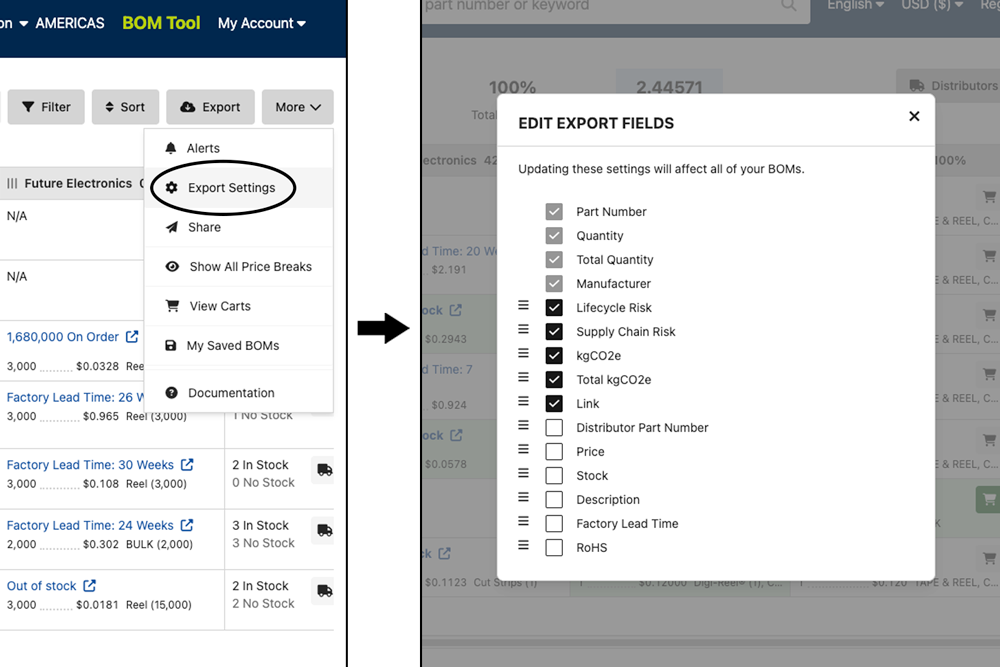
To customize which fields appear on your exported file:
- Click the More button, then choose Export Settings.
- Some columns are pre-selected and cannot be removed.
- Check the box for optional fields to include them in the exported file or exclude them from the exported file.
- Sort the order of the fields by clicking the stack icon and dragging the selections to the desired positions.
- If you have signed up for an account, your custom settings will apply to all of your BOMs on all devices. If you do not have an account, the custom settings will apply anytime you use the same device and web browser.
- Close the Edit Export Fields dialogue box.
View the BOM
- Toggle between the new and classic BOM Tools using the Switch to classic BOM Tool and Try our new BOM Tool buttons at the top of the page.
- Click into the number field of the BOM Qty box to adjust the total BOM quantity.
- The Total Coverage figure reflects the percentage of BOM parts that are in stock.
- For approved users: Total kgCO2e estimates the carbon footprint of the BOM. Note: you may notice an informational icon in the kgCO2e column. Hovering over the icon will provide additional details.
- Click on any part line to view the following in a pop-up box:
- Part image, where available, and number
- Manufacturer name and description, if applicable
- Lifecycle Risk (click the status for more information)
- Supply Chain Risk (click the status for more information)
- Link to the datasheet if applicable
- Link to the TrustedParts.com part detail page
- Adjust your BOM view using the Page Size dropdown on the bottom right. Note: the page size selection will save for users and apply to viewing other BOMs.
- Navigate between pages of the BOM using the Previous, Next, or page number buttons on the bottom right.
More Features
Use the TrustedParts.com BOM tool for product tracking alerts, collaboration, price break information, and shopping carts.
BOM Alerts
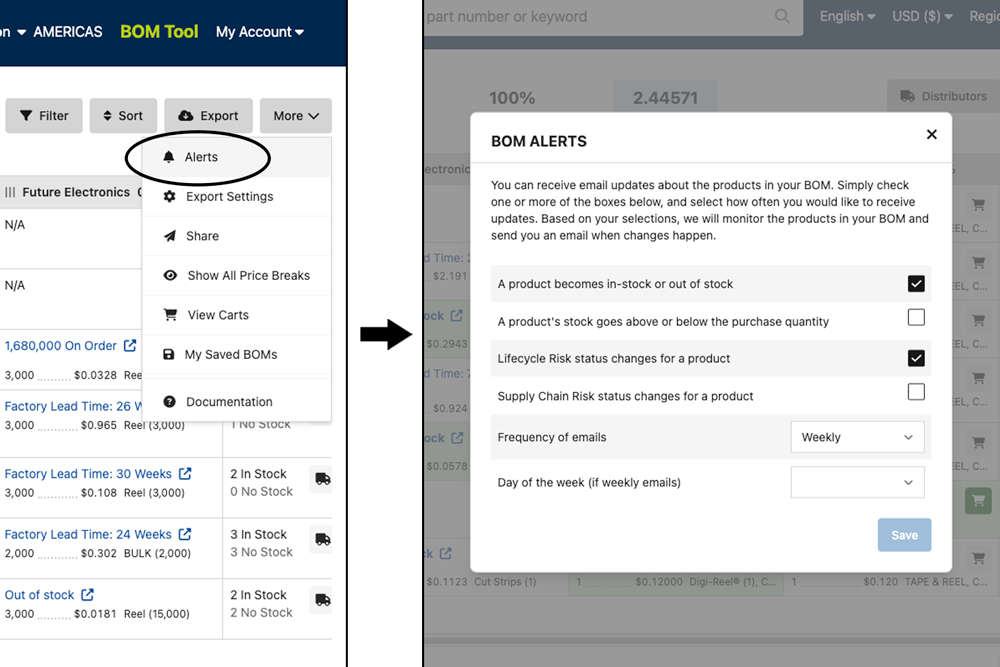
The BOM Alerts feature allows you to receive email updates regarding changes to products in your BOM. Note: BOM alerts can be configured independently from Stock and Price Alerts. You can receive BOM alerts for the following changes:
- A product becomes in-stock
- A product becomes out of stock
- The stock quantity of a product exceeds the purchase quantity
- The stock quantity of a product falls below the purchase quantity
- Lifecycle Risk status changes for a product
- Supply Chain Risk status changes for a product
Manage BOM Alerts
- Click the More button, then choose Alerts to open the Alerts pop-up box.
- Select the types of alerts you wish to receive by checking the boxes. Turn off a BOM alert by unchecking a selected box or boxes.
- Choose from the Frequency of Emails dropdown to set how often you’d like to receive updates. You may choose between daily and weekly updates.
- Click the Save button to update your preferences.
Note: you will only receive a BOM Alert email when one of the selected BOM Alert changes occurs to a product on your BOM, and the selected email frequency time has elapsed. If there are no applicable changes to your BOM or if the specified amount of time has not passed, you will not receive an email.
BOM Sharing & Collaboration
You can share your BOMs with other users.
To Share a BOM from the BOM Tool:
- From the BOM tool, click the More button and choose Share.
- Continue from there in the Share BOM Pop-Up Box section.
To Share a BOM from the Saved BOMs Page:
- From the Saved BOMs tab of the My Account page, select a BOM from the list by checking the corresponding box in the Name column.
- Press the Share button. Continue from there in the Share BOM Pop-Up Box section.
Share BOM Pop-Up Box
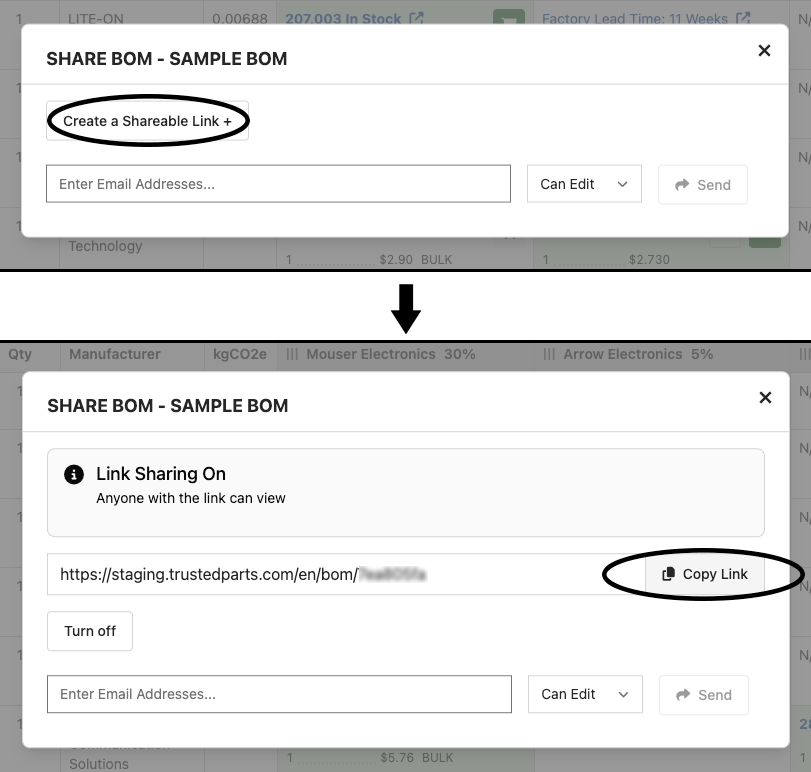
On the Share BOM pop-up, you can copy a sharable link, or share the BOM with other users. You may also view, add, and delete collaborators and change user permissions.
To Create a Sharable Link:
- Click Create a Shareable Link+ to create a unique URL that can be copied and sent to another user via third-party chat, text message, email, and more.
- Click Copy Link to copy to your clipboard.
Note: BOMs shared with a link are view-only and cannot be edited by the recipient.
To Share a BOM with Other Users:
- Type or paste an email address in the Enter Email Addresses... field.
- By default, collaborators can edit the BOM (Can Edit). To prevent recipients from changing the BOM, use the dropdown to select Can View.
- If a collaborator does not have a TrustedParts.com account, they will need to create one.
- Click Send.
- Repeat the steps to share with additional users.
Manage Shared BOMs
You can manage a BOM already shared using either of two methods:
- From the My Account page, click on the arrow icon of the shared BOM to open the Share BOM pop-up.
- From the BOM itself, click More, then choose Share to open the Share BOM pop-up.
To Add More Users:
- Enter another email address in the Enter Email Addresses... field. Click Send.
To Change Editing Rights:
- For either new or current collaborators, select Can Edit or Can View from the drop-down.
To Stop Sharing:
- Click the Remove button in the email address line.
- Click the Turn Off button under the Link Sharing On box.
Additional Notes:
- If a collaborator is not yet registered with TrustedParts.com, they will be invited to sign up for a free account.
- On the Saved BOMs tab of the My Account page, shared BOMs are indicated by the shared icons after the owner's name: the person icon indicates sharing via email, and the information icon indicates sharing via link. Clicking the arrow icon opens the Share BOM pop-up.
- Only one user at a time can edit a shared BOM. While a user is editing a shared BOM, other users will have view rights. Soon after the editor closes the BOM, another user may begin editing.
View Price Breaks and Packaging Options
Click More, then click Show All Price Breaks to view all price breaks. (By default, the BOM tool will only show the price break for the quantity you enter.)
Where applicable, click the three dots (...) next to a stock to view different packaging options (or other variations) available for that part.
BOM Shopping Cart
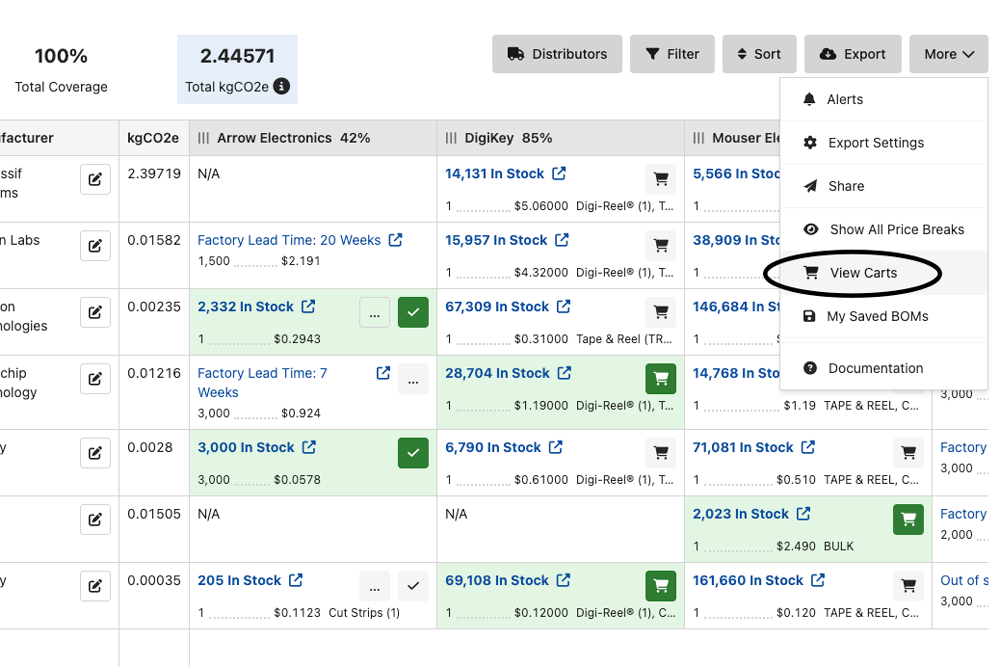
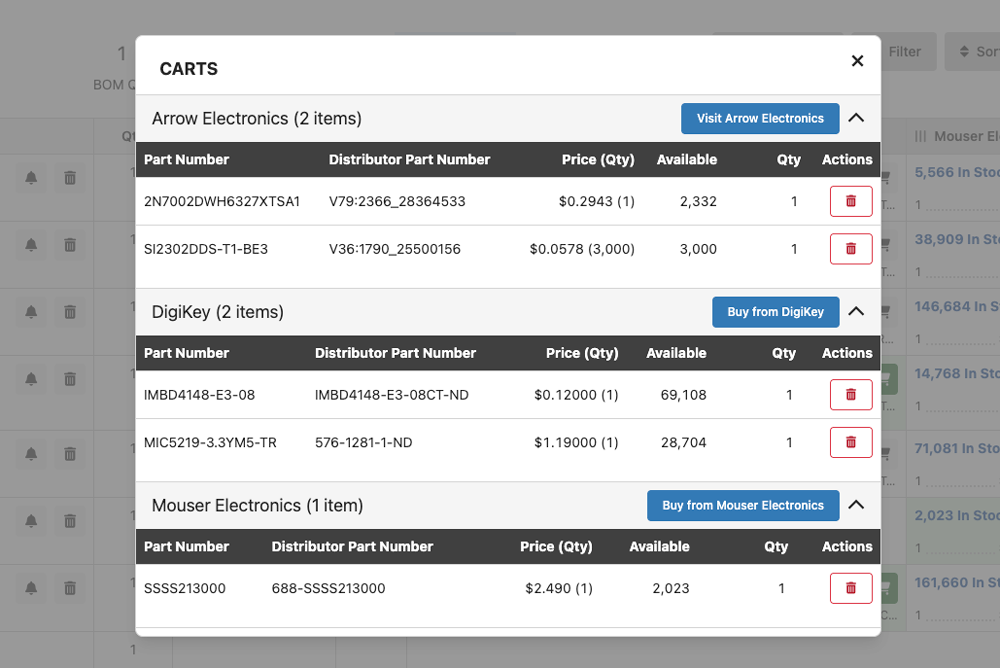
The BOM Shopping Cart feature lets you quickly transfer your BOM’s line items to select distributor websites for purchase or quote. In-stock results display a shopping cart or a check-mark icon in the distributors’ columns of the applicable part lines.
- To place in-stock items in your cart, select the check or cart icons.
- After selecting the parts, click the More button, then choose View Carts.
- This opens the Carts pop-up with your selected items. Continue with the Viewing Carts section from there.
Viewing Carts
This pop-up displays a list of the results you have selected for purchase. Here you can adjust the quantity of parts and quickly access the authorized distributor's website.
Click the distributor heading or arrow icon to collapse or expand a distributor's results:
- Adjust the part quantity for that distributor by clicking into the number field. Note: changing this quantity does not affect the original BOM quantity entered.
- De-select a result and remove it from the cart by clicking the delete icon.
- Parts selected using the shopping cart icon display a Buy from… button and are eligible to transfer to the distributor’s site for purchase or quote. Clicking the Buy from… button opens the distributor’s website in a new browser tab and transfers these items to their shopping cart or another tool on their website.
- Using the check-mark icon to select multiple parts from a distributor displays a Visit… button. Clicking the Visit… button takes you to their website but won’t transfer these items.
Extended BOM
By default, the TrustedParts.com BOM Tool has a 100-part limit on searches. However, if you need to perform larger searches, you can request access to the Extended BOM. This feature allows approved users to submit searches of up to 1,000 parts at a time when using the BOM Tool.
Request Extended BOM Access from TrustedParts.com
Learn how to request access to the TrustedParts.com Extended BOM.
If You Do Not Have a User Account:
- Register for a new account and verify your email address.
- Follow the instructions below for those who already have a user account.
If You Have a User Account:
- Sign in to your account. This takes you to the My Account page.
- Select the Additional Features tab.
- Under Features You May Request, click the Extended BOM link.
- Fill out and submit the request form.
An administrator will review your request and contact you regarding approval.
After Extended BOM Access Has Been Approved
- Sign in to your account.
- Click on the link BOM Tool in the website header. This takes you to the Start a New BOM page.
- Start your new BOM by adding parts line-by-line, or uploading a file.